Getting Started
What Airlock does
When a mobile app calls trackState or trackAction, the AEP Mobile SDK fires an analytics event into its internal event bus. Normally, that event travels straight to Adobe Analytics with whatever data the app put on it. Airlock processes the same event in parallel — giving you a chance to enrich the payload, suppress the hit, or restructure the data entirely from a Launch rule rather than an app release. (Airlock doesn't intercept Analytics' copy of the event; the two-rule pattern below is what routes the enriched payload to Analytics. See How It Works for the full mechanism.)
The result is the same kind of tag-time control that web implementations have always had, now available on mobile.
| Extension Configuration | Rule Actions | Data Elements |
|---|---|---|
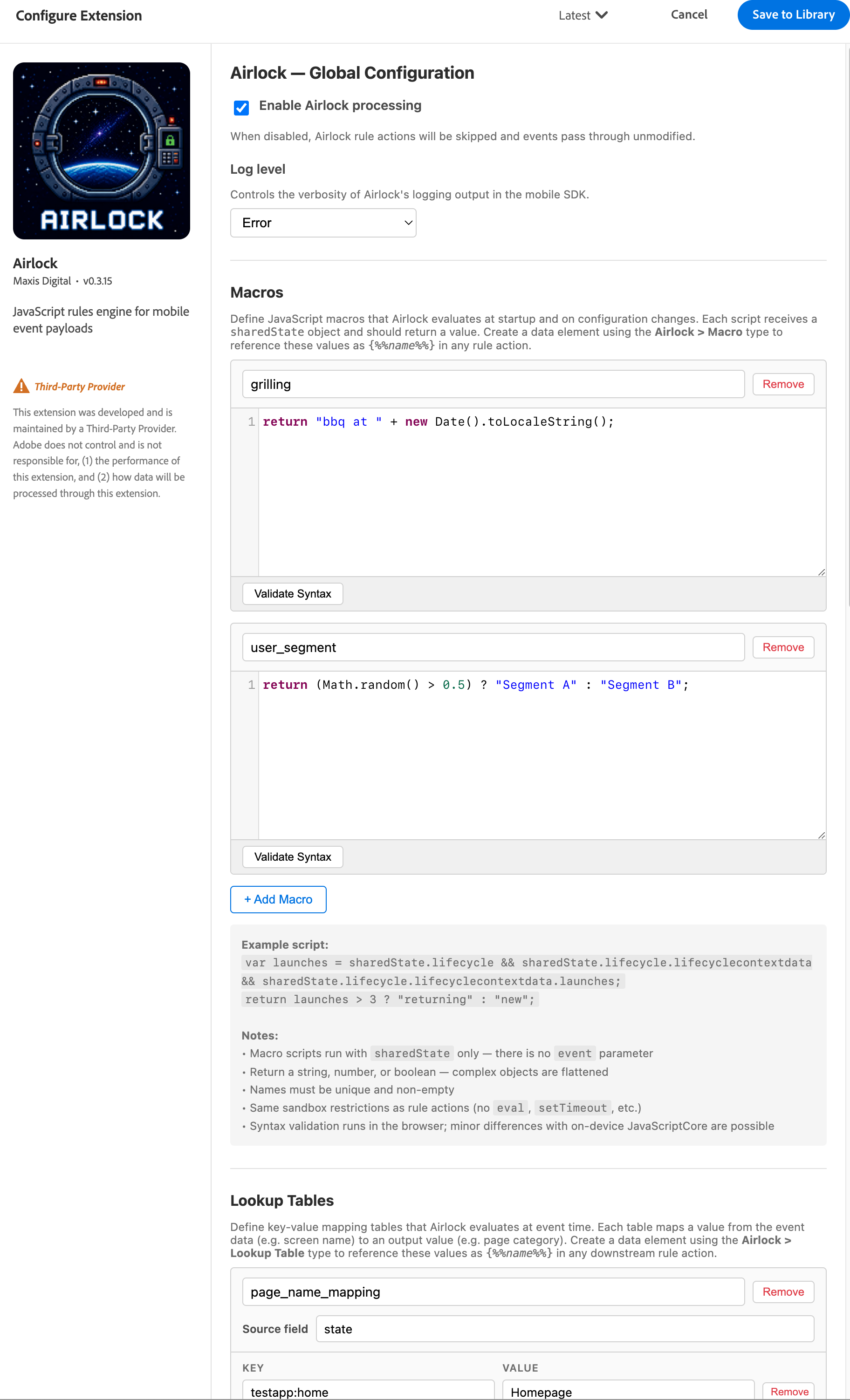 |
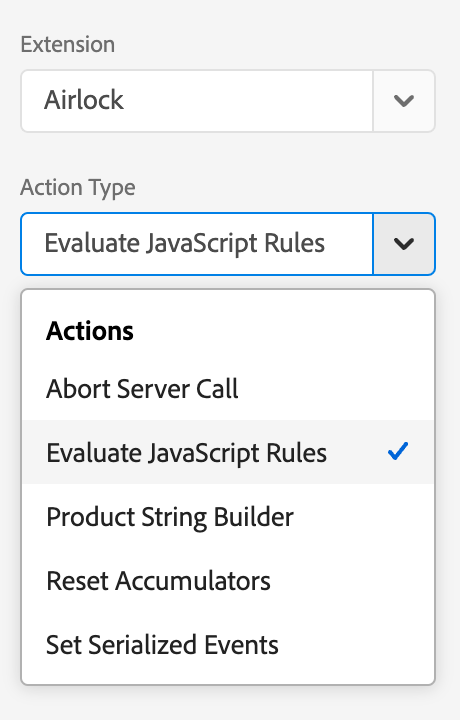 |
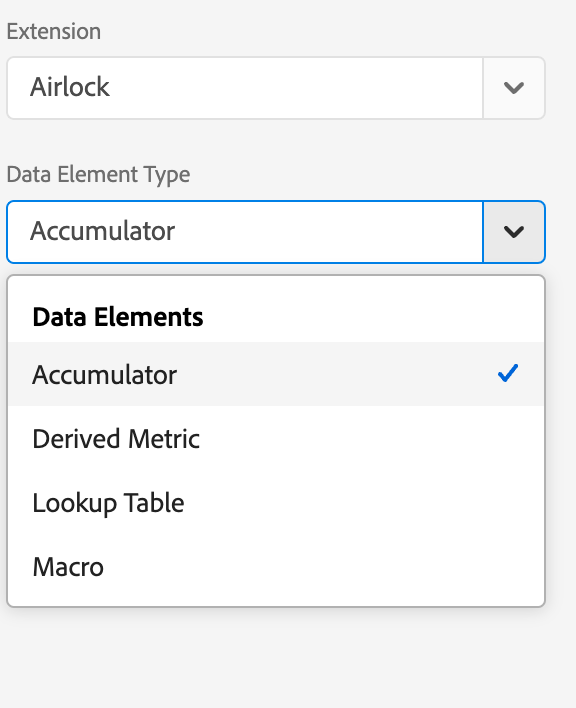 |
The two-rule pattern
Airlock works through a pair of Launch rules that fire in sequence on every tracked event.
Rule A — the trigger rule
This rule fires on the mobile event (e.g. Track Action where action equals purchase). Its action is one of Airlock's action types: Evaluate JavaScript Rules, Set Serialized Events, or another Airlock action. When Rule A fires, Airlock processes the event and dispatches a new enriched event called Airlock Processed Track.
Rule B — the downstream rule
This rule fires on the Airlock Processed Track event. Its actions are the things you'd normally put on Rule A in a non-Airlock implementation: Attach Data, Modify Data, send to Analytics, and so on. Because Rule B fires on the enriched event, it has access to everything Airlock added — modified contextdata, &&events, shared state values, and so on.
App fires trackAction("purchase", ...)
        │
        ▼
Rule A fires → Airlock action runs → dispatches "Airlock Processed Track"
                                              │
                                              ▼
                                     Rule B fires → Modify Data → Analytics
Tip
Rule B should use Mobile Core → Track Action (or Track State) with the condition Action Name equals Airlock Processed Track — or more precisely, filter on the airlock contextdata key being present, which Airlock always sets on enriched events.
Rule A
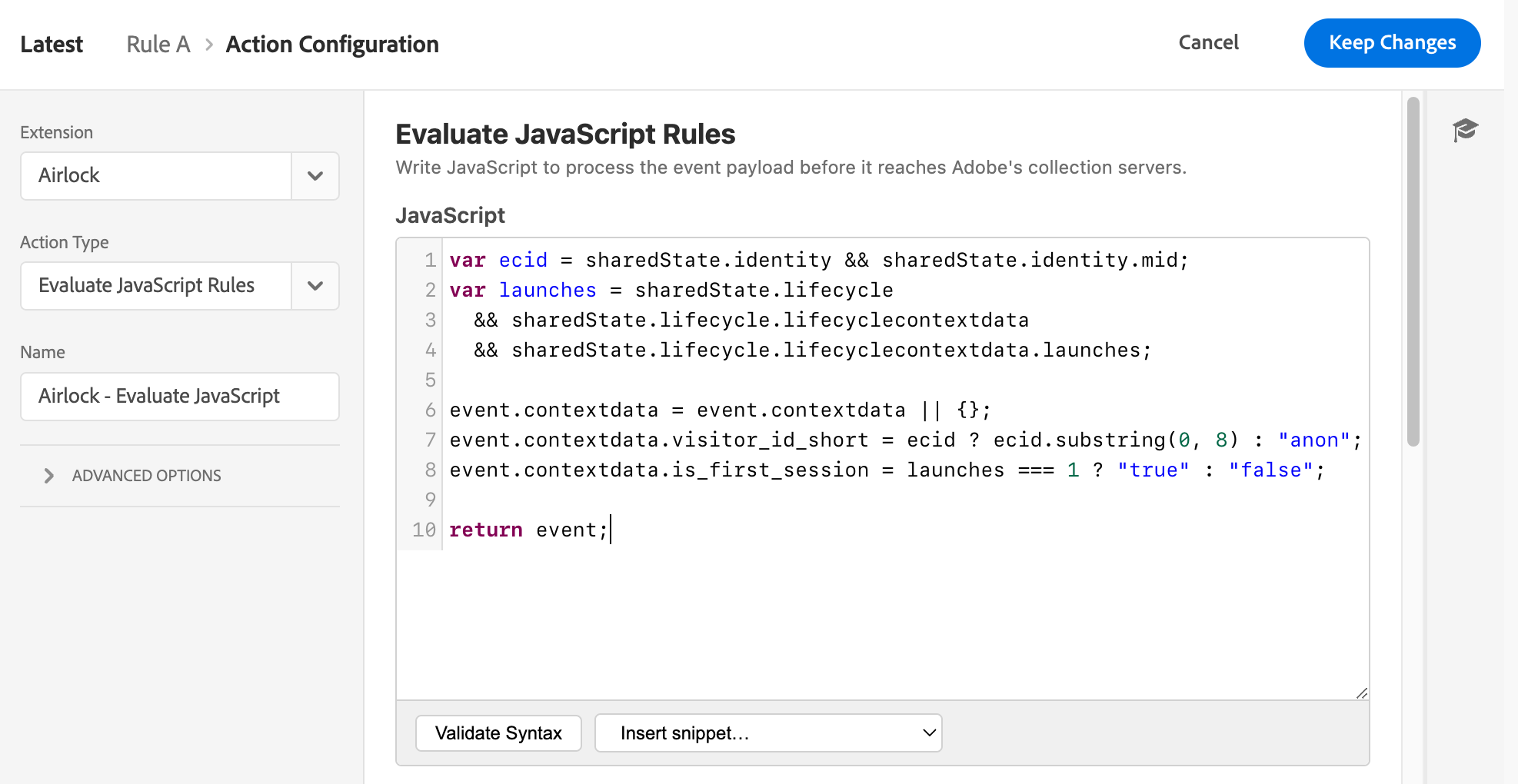 Description: Rule A in the Launch UI — event trigger configured for a trackAction, with an Airlock action added.
Rule B
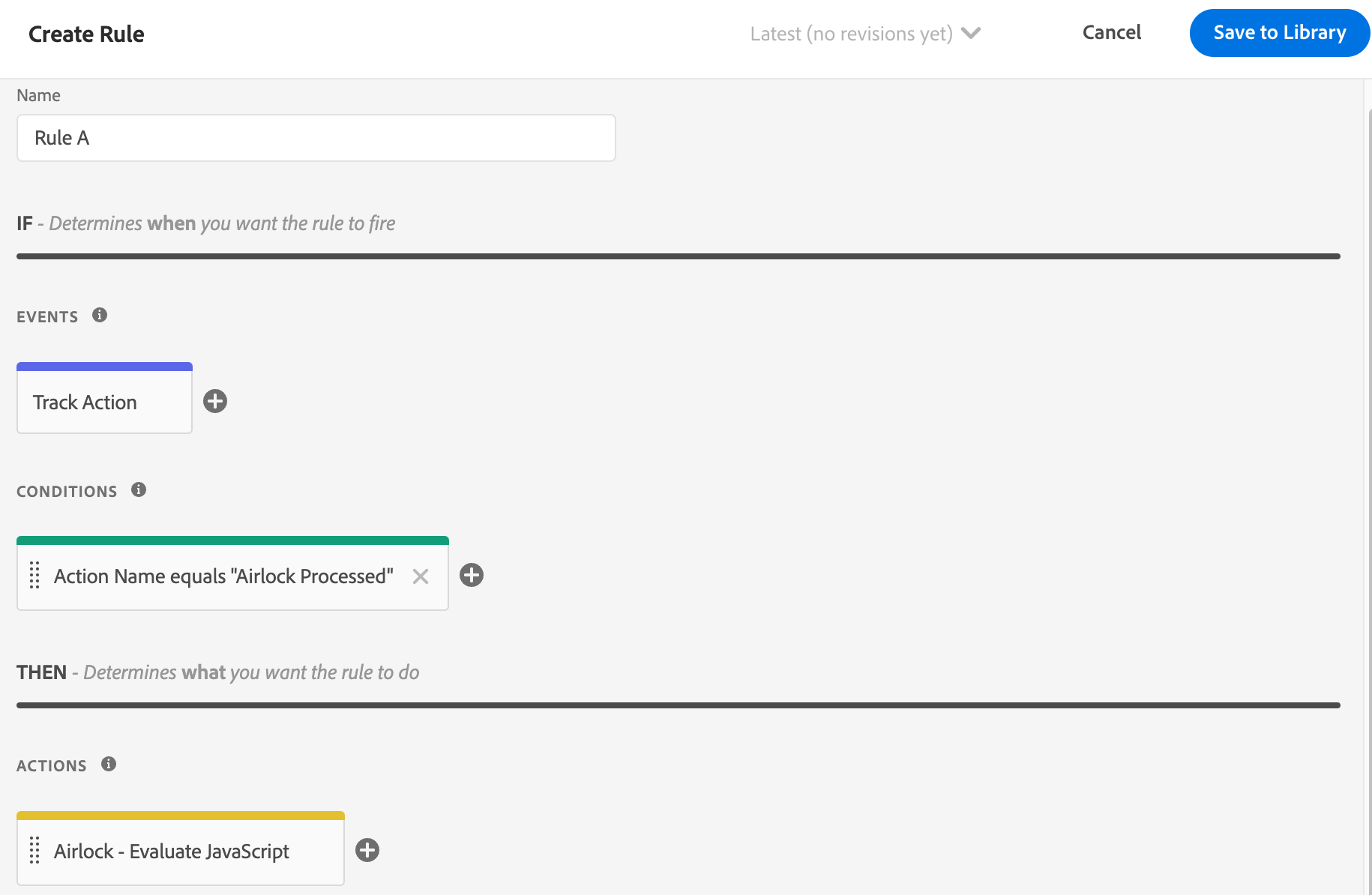 Description: Rule B in the Launch UI — event trigger filtered on the Airlock Processed Track event, with downstream actions (Modify Data / Analytics).
The airlock contextdata keys
Airlock injects two keys into every enriched event's contextdata:
| Key | Value | Purpose |
|---|---|---|
airlock |
Extension version (e.g. 0.3.10) |
Confirms Airlock processed this event; use as a condition in Rule B |
airlock_type |
trackAction or trackState |
Preserves the original event type after enrichment |
airlock.status |
ok or error |
Result of JS evaluation (ok on success, error if the script threw) |
airlock.error |
Error message string | Only present when airlock.status is error |
Verifying with Adobe Assurance
Adobe Assurance (formerly Project Griffon) is the fastest way to confirm Airlock is running correctly.
- Connect the test app to an Assurance session.
- Trigger the event you expect Airlock to process (e.g. fire a
purchasetrackAction from the app). - In Assurance, look for two events in sequence:
- The original Track Action event with the raw app payload
- The Airlock Processed Track event immediately after
- Inspect the Airlock Processed Track event. Confirm:
contextdata.airlockis present and shows the deployed version numbercontextdata.airlock.statusisok- Any enrichment you configured (modified keys,
&&events, etc.) is visible
If you see airlock.status = error, expand airlock.error — it contains the JavaScript exception message.
If the Airlock Processed Track event doesn't appear at all, check that: - The Airlock extension is installed and enabled in the property - Rule A is published to the environment the test app is pointing at - The rule conditions match the event the app is firing
Assurance session
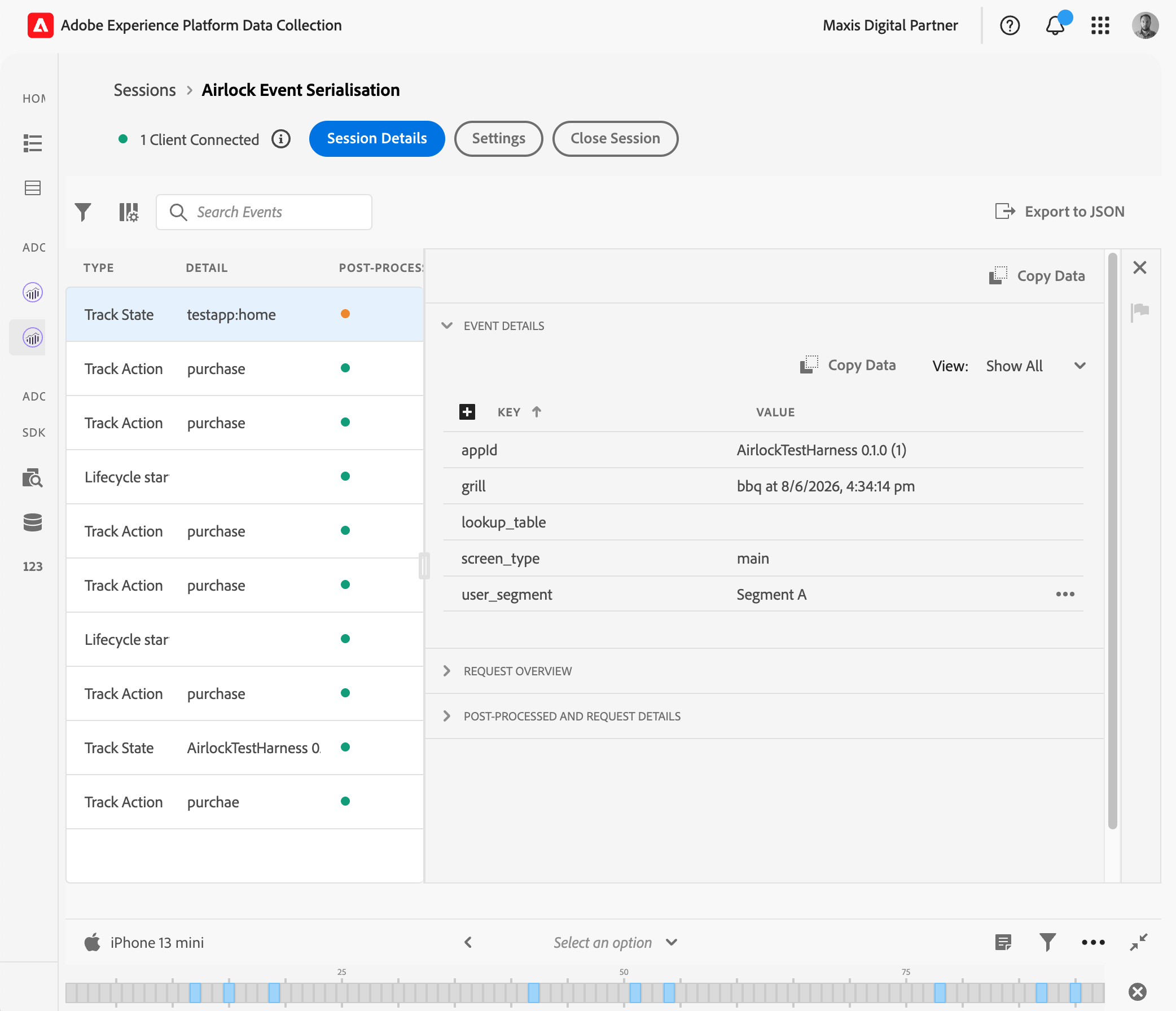 Description: Assurance session showing the original Track Action event followed by the Airlock Processed Track event, with the contextdata panel expanded to show
 airlock, airlock_type, and airlock.status.
Next steps
- Extension Configuration — set the log level and configure macros, lookup tables, and accumulators
- Evaluate JavaScript Rules — the primary action for enrichment and suppression
- Set Serialized Events — deduplicate Analytics events without app code