Session Accumulator Data Element
The Session Accumulator data element returns the current value of a named accumulator — a running count or sum that Airlock maintains across events during a session. Use it in Launch conditions and actions to make decisions based on how many times something has happened, or how much value has accumulated, without writing app code.
How it works
Accumulators are defined in Extension Configuration → Accumulators. Each accumulator tracks either a count (increments by 1 per qualifying event) or a sum (adds a numeric value from each event).
Every time a track event fires, Airlock updates all configured accumulators and publishes the new values into its shared state. This data element reads the current value from that shared state at rule-evaluation time.
Also available inside JS scripts
Accumulator values are published to sharedState.airlock.<name> and can be read directly from any Evaluate JavaScript Rules or Custom Code script without first wiring up a Launch data element.
When to use it
| Scenario | Accumulator setup | Condition |
|---|---|---|
| Fire an event only on the 3rd screen view | Count accumulator on screenView events |
Accumulator equals 3 |
| Gate a promo offer after 5 app opens | Count accumulator on lifecycle launch events | Accumulator is greater than or equal to 5 |
| Track cumulative purchase value | Sum accumulator reading contextdata.purchase_amount |
— (use the value as a data element directly) |
| Show a rating prompt after 10 sessions | Count accumulator on session start | Accumulator equals 10 |
Setting it up
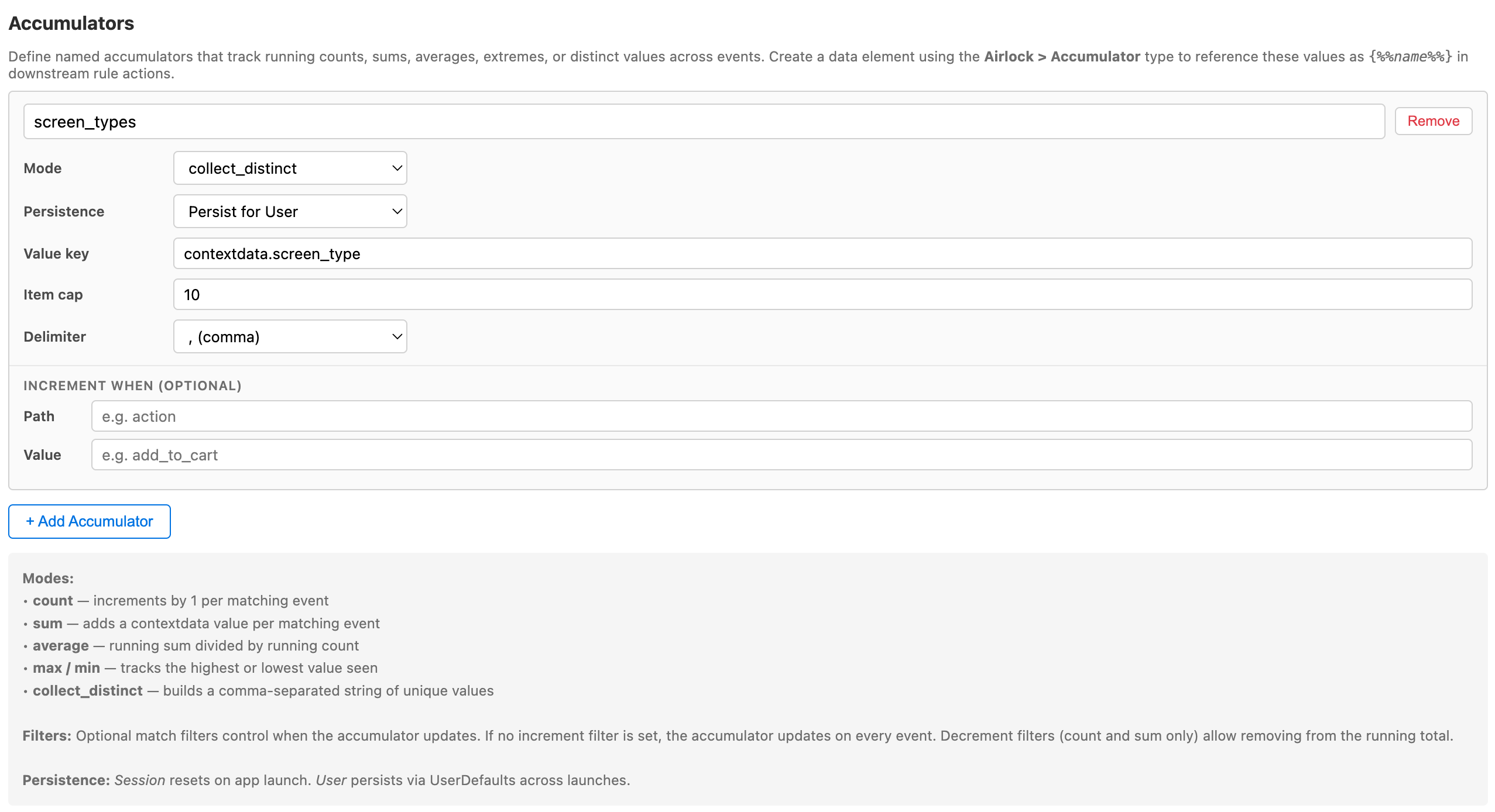
Step 1 — Define the accumulator in Extension Configuration
In Extension Configuration → Accumulators, add an accumulator:
- Name:
screenViews - Mode: Count
- Persistence: Session
Accumulator Extension Configuration
Step 2 — Create the data element
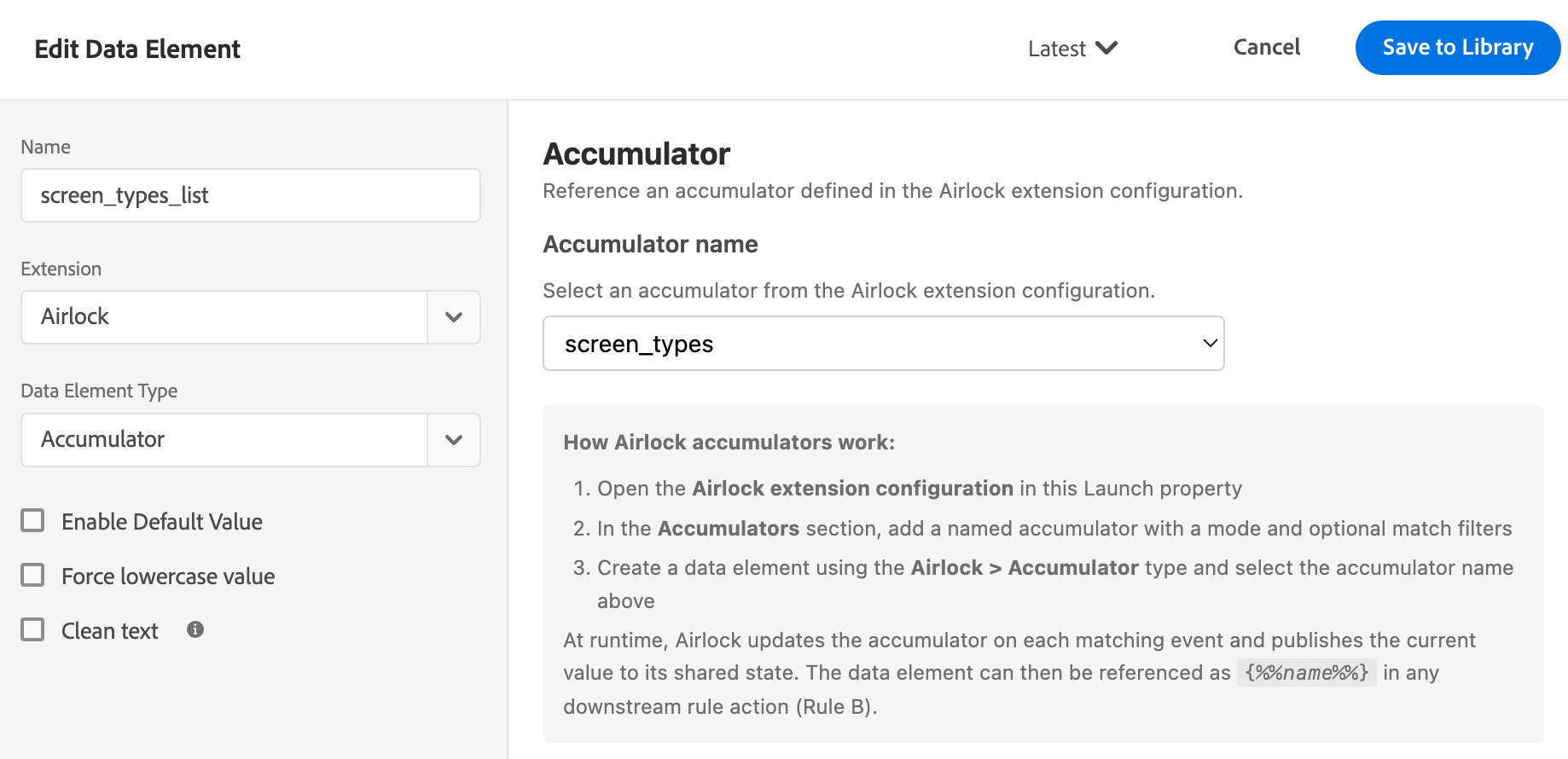
In Launch, create a new data element:
- Extension: Airlock
- Data element type: Session Accumulator
- Accumulator: select
screenViewsfrom the dropdown
Accumulator Data Element
Step 3 — Use in a condition
In a rule condition:
- Data element:
{%%Screen View Count%%} - Operator: Equals
- Value:
3
The rule fires only when the user has viewed exactly 3 screens in the current session.
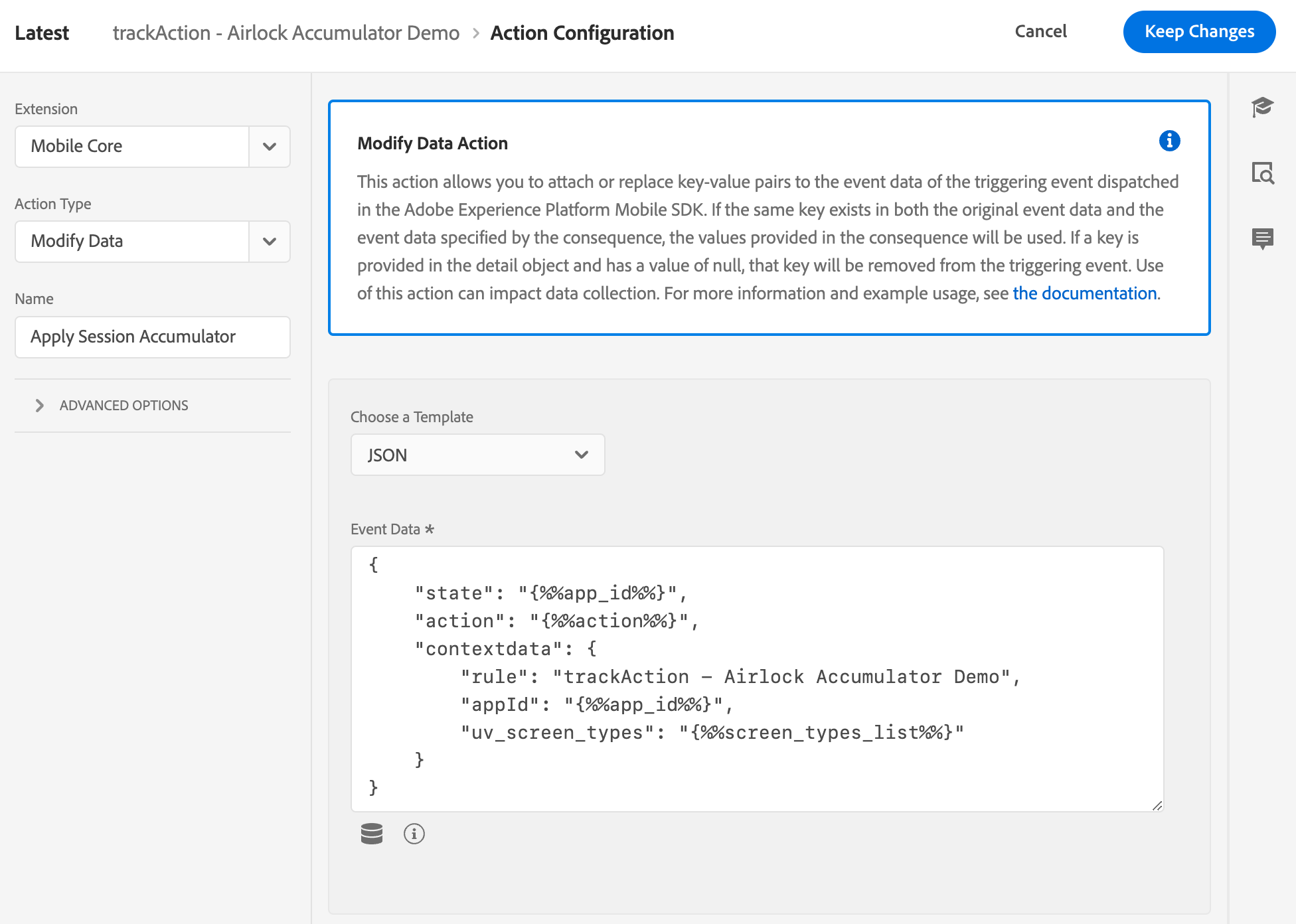
Using the Accumulator in a rule action
Persistence modes
| Mode | Behaviour |
|---|---|
| Session | Resets to zero when the app is closed. In-memory only. |
| User | Persists across app restarts. Stored in UserDefaults on iOS. Use for lifetime or cross-session counts. |
Persistence is set in Extension Configuration — not in the data element itself.
Resetting an accumulator
Use the Reset Accumulators action to zero an accumulator from a Launch rule — for example, resetting checkoutAttempts after a successful purchase, or resetting screenViews on app foreground.
Worked example: "first purchase" gate
Goal: Fire event2 only on the user's first purchase in a session.
Setup:
- Define a Count accumulator named
purchaseCount, Persistence: Session. - Create a Session Accumulator data element named
Purchase Count. - In the purchase rule, add a condition:
Purchase Countequals1. - The Airlock action (Set Serialized Events or Evaluate JS Rules) fires only when this is the first purchase.
After the first purchase fires, the count becomes 1. On the second purchase in the same session, the count is 2 and the condition fails — event2 doesn't fire again.
Tip
The accumulator increments before the rule's actions run. So when the condition checks purchaseCount equals 1, it's already reflecting the current event. The first purchase arrives, count goes to 1, condition passes, action fires.
See also
- Extension Configuration → Accumulators — where accumulator mode and persistence are configured
- Reset Accumulators action — how to zero an accumulator from a rule
- Custom Code data element — for accumulator-based logic that requires code (e.g. formatting the value, combining multiple accumulators)
- Set Serialized Events action — pairs well with accumulators for "first occurrence" serialisation patterns